Are you familiar with iOS development environment and interested to learn more while helping the project?
Build the iOS app
These instructions build the Collabora Office iOS app. Everything is done on a Mac: you build the engine first, then the app, from the same monorepo.
Requirements
You will need:
- An Apple Developer Program membership. The Collabora Office app for iOS relies on Fonts and iCloud capabilities, which are only available to accounts in the developer program. If you don’t have an account, enroll on Apple’s developer program website. If you are developing for work, your employer may be able to add you to a development team.
- A Mac with Xcode installed.
- A physical iOS or iPadOS device. Collabora Office cannot run in a simulator, because the engine is built for an
iOStarget while the simulator isiOS-simulator. Building forMy Mac (Designed for iPad)on Mac Silicon will run but is unstable (bugs sometimes appear on Mac but not on a device, or vice versa), so we strongly suggest a physical device.
Install Homebrew (from https://github.com/Homebrew/brew/releases/latest), adding /opt/homebrew/bin and /opt/homebrew/sbin to your PATH, then install the build toolchain:
brew install autoconf automake libtool pkg-config
Install Node.js (20.x) by downloading the macOS .pkg from the Prebuilt installer tab at https://nodejs.org/en/download. It provides the npm and node commands required to build everything in the browser/ folder.
Install the Python helpers used by the build:
/usr/bin/pip3 install polib
/usr/bin/pip3 install lxml
Clone the monorepo
All the source code now lives in a single Gerrit monorepo; the former Collabora Office core is the engine/ subdirectory of the online repo, so there is no separate repository to clone any more. Code review happens on Gerrit, not GitHub pull requests; see the first contribution guide for the full workflow.
For an anonymous read-only clone:
git clone https://gerrit.collaboraoffice.com/online collabora-office
cd collabora-office
If you have a Gerrit account and plan to push changes for review, clone over SSH instead:
git clone ssh://YOUR_USERNAME@gerrit.collaboraoffice.com:29418/online collabora-office
cd collabora-office
Build the engine
If you want a localized (translated) user interface, first clone the translations repository into engine/translations from the top of the clone; the engine’s --with-lang picks up the .po files from there:
git clone https://gerrit.collaboraoffice.com/translations engine/translations
Move into collabora-office/engine and put something like this in your autogen.input:
# Comment out for production builds
--enable-debug
--enable-dbgutil

# Standard build options
--enable-werror
--enable-symbols
--with-myspell-dicts
--with-distro=CPiOS
--with-lang=ar bg ca cs da de el en-US en-GB eo es eu fi fr gl he hr hu id is it ja ko lo nb nl oc pl pt pt-BR sq ru sk sl sv tr uk vi zh-CN zh-TW
Then build “normally”. (Naturally, no unit tests will be run when cross-compiling.) There is no requirement to use those --enable options; at a minimum, just --with-distro=CPiOS should work.
This produces a large number of static archives (.a) here and there in instdir and workdir, but no app that can be run as such. (You can see a list of them in workdir/CustomTarget/ios/ios-all-static-libs.list.) POCO and zstd are built as part of the engine and taken from its workdir, so they no longer need to be built separately for iOS.
Build Collabora Office
Step back to the top of the collabora-office clone (one level up from engine/) — the same monorepo contains the online sources. Run autogen and configure with the --enable-iosapp option:
./autogen.sh
./configure \
--enable-iosapp \
--with-app-name="My Own Mobile Office Suite" \
--with-app-package-name=com.yourpackage.name \
--enable-experimental \
--with-vendor="MyOwnApp" \
--with-lo-builddir=$(pwd)/engine
Then build the JavaScript bits by running make from the top of the monorepo:
make
The configure script puts the app name as the CFBundleDisplayName property into the ios/Mobile/Info.plist file, writes the bundle identifier into ios/Mobile/Config.xcconfig for the Xcode project to pick up, and sets up some symbolic links that point to the engine source and build directories (which typically will be the same, of course).
Build the app
Before opening the Xcode project for the first time, seriously consider disabling source code indexing — it spawns a vast number of git processes and consumes huge amounts of CPU & memory:
Xcode → Preferences, “Source Control”, uncheck “Enable Source Control”
Now open the Mobile Xcode project. Xcode is very restrictive and requires some configuration before you can run the app:
- Xcode must be signed into an Apple ID that is a member of the Apple Developer Program.
- The app is built with the bundle identifier that was given to
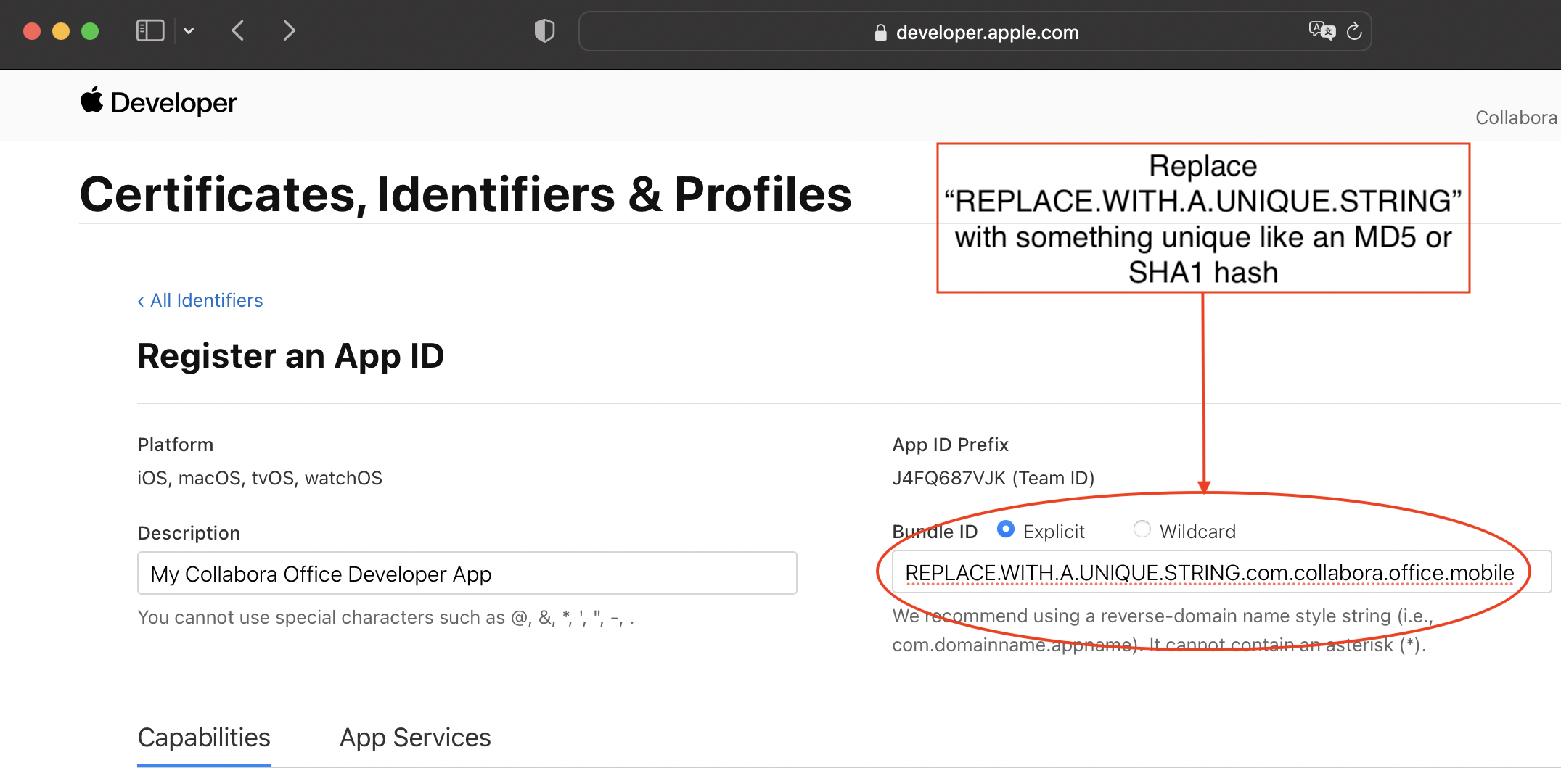
configureas--with-app-package-name. Without that option it iscom.collabora.office.Mobile, which only Collabora can sign, so you need a bundle ID of your own. To obtain one, log in to your Apple Developer account at https://developer.apple.com and create a unique bundle ID in the Certificates, Identifiers & Profiles page. Be sure to check the Fonts and iCloud options in the Capabilities section. A sample configuration is shown here: https://collaboraonline.github.io/images/build-code-ios-bundle-ID-config.png Then pass that bundle ID toconfigure. If Xcode was already running whenconfigurefirst createdios/Mobile/Config.xcconfig, close and reopen the project, so that Xcode picks the file up and resolves the identifier everywhere, including its run and launch steps. - In the project’s Signing & Capabilities panel, select your development team.
Then build and run. Note that building for “My Mac (Designed for iPad)” on Mac Silicon will run but is unstable. You can’t run in a simulator since the engine for iOS is built for arm64 only, so you can only test on a real iOS device.
Edit page